Date: Sunday, February 4, 2024
Work Undertaken Summary
- Research current state of running LLM locally
- Install fresh SSD for project in server
- Install windows on server
- Change server from windows because of ollama
- Install ollama running on CPU
- Research using ollama with AMD GPU’s
- Patch ollama build script for AMD GPU support
- Play with llama2 of varying sizes
- Research langchain
Problems encountered and how you overcame them
#choice Gave the server a completely fresh SSD (hard drive / storage) so that ALL changes required to reproduce the results can be documented.
Initially installed windows on the machine, as from prior experience machine learning workloads have focused on being windows friendly due to the massive install base. And I thought that I could always use “Windows Subsystem for Linux” as an escape hatch if needed.
#choice However ollama does not support windows as of Feb 2024, and its support for AMD GPU’s is questionable as well. Therefore I decided to switch to Linux to not cause unnecessary headaches for myself and only tackle the AMD GPU issue.
#choice Installed manjaro linux, due to familiarity with Arch Linux (manjaro’s base distribution). Additionally I assumed that the rolling release nature of Arch Linux would be helpful while investigating the cutting edge field of large language models.
Installing ollama for CPU was easy as was packaged by pacman (Arch linux package manager). However it didn’t provide AMD GPU support. Following the blogpost: Run ollama with an AMD GPU on Arch — blog.rabu.me I was able to get ollama built from source and working with my AMD GPU.
Ideally this would be packaged up so that:
- pacman / my system was aware of the software
- I could use arch’s integration with systemd to have ollama running on boot
- I could document and easily share how I got ollama to build
- I could easily upgrade in the future if required
So I took the existing makepkg.conf from arch linux’s repo (Arch Linux / Packaging / Packages / ollama · GitLab) and modified it to use the build steps from the other blog post.
The resulting config files have been published on github LukeThoma5/ollama-arch-linux-amd-gpu (github.com)
Time Spent
- task: ”Server OS Install” time: 2.5 hours progress: 80
- task: ”Ollama install” time: 2.5 hours progress: 100
- task: ”Technical Documentation” time: 1.5 hours progress: 10
- task: ”Top Level Design Research” time: 1.5 hours progress: 50
Questions for Tutor
Not Applicable
Next work planned
setup langchain, maybe in a container? With notebooks or something for reproducibility?
#choice Reasons for langchain, langchain lets us write the code with a system message AND also abstract over the model we are talking to, so we can talk to local llms and e.g. openai with the same code to make it easier to compare.
Raw Notes
Installed manjaro linux.
Ollama setup
install base-devel package
install ollama using package manager pacman, only running on CPU.
install runtime dependencies from this post Run ollama with an AMD GPU on Arch — blog.rabu.me
git clone --recursive https://github.com/jmorganca/ollama
sudo pacman -S rocm-hip-sdk rocm-opencl-sdk clblast go
ROCM_PATH=/opt/rocm CLBlast_DIR=/usr/lib/cmake/CLBlast go generate -tags rocm ./...
go build -tags rocm
building locally went fine, so tried to change the arch linux package: Arch Linux / Packaging / Packages / ollama · GitLab
had to change both the package build (to add rcon - e.g. amd cuda) and modify the MAKEPKG.conf to not include a flag that caused builds to fail
changes controlled here: LukeThoma5/ollama-arch-linux-amd-gpu (github.com)
had to remove the -fcf-protection from CFLAGs as it was failing while compiling something for CUDA. assumedly it isn’t something that can be done for something that is compiled down to a cuda shader, fair enough.
used radiontop to ensure it was using the gpu, was noticably faster!
Now trying out llama2:70b for the 70 billion parameter model.
#todo Might be worth using the :text label rather than :chat the default. As it might be better at writing a specification.
Using ollama
In 1 terminal ollama serve to run the background daemon / web api
in a second terminal ollama run llama2:70b to get an interactive prompt for messing with the llm
I have enabled and started the ollama.service in systemd so it should just work on next boot without the first terminal :D
Decision - Use Docker
Decided against using docker as we are doing gpu acceleration which can be finiky with docker. It looked like the official image was only supporting nvidia gpus anyway as it was talking about splitting out the image to keep it smaller as amd takes up a lot of space. but can’t see any tags for amd
Add back ROCm container support · ollama/ollama@75c44aa (github.com)
nevermind, I might just have to use this command and build the image myself: Add back ROCm container support · ollama/ollama@75c44aa (github.com)
and the container would be :runtime-rocm
ollama/ollama - Docker Image | Docker Hub
docker run -d --gpus=all -v ollama:/root/.ollama -p 11434:11434 --name ollama ollama/ollamadocker exec -it ollama ollama run llama2
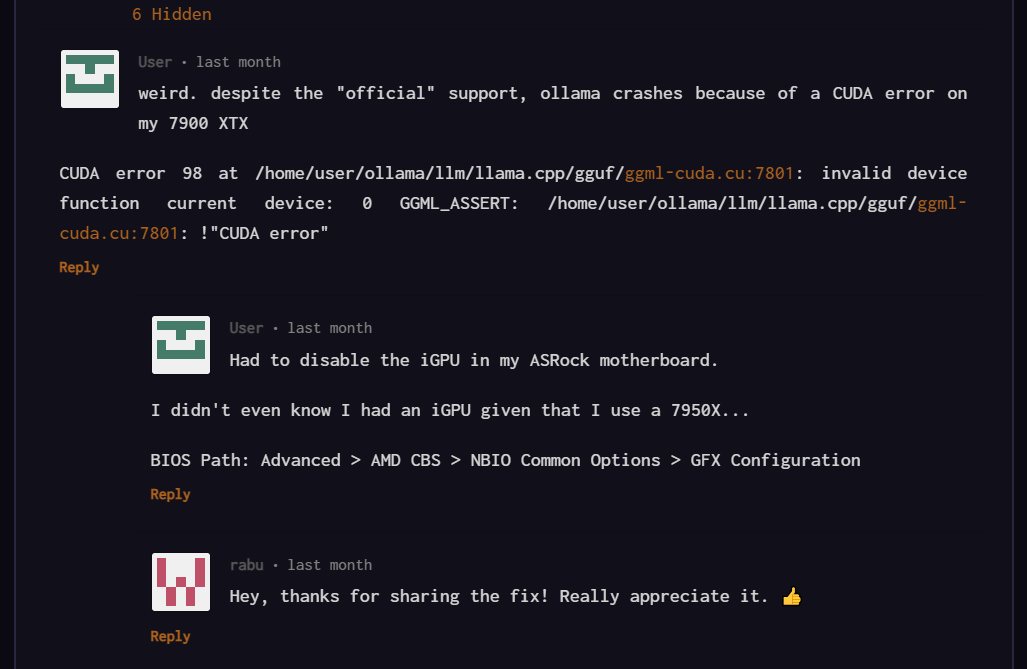 Run ollama with an AMD GPU on Arch — blog.rabu.me
WSL 2 GPU Support is Here | Docker
docker run -d --gpus=all -v ollama:/root/.ollama -p 11434:11434 --name ollama ollama/ollamaSources
Run LLMs locally | 🦜️🔗 Langchain Quickstart | 🦜️🔗 Langchain LMSys Chatbot Arena Leaderboard - a Hugging Face Space by lmsys Introduction | 🦜️🔗 Langchain Security | 🦜️🔗 Langchain
Next steps:
- try out docker approach, might be nicer / more reproducible
- setup langchain, maybe in a container? With notebooks or something?
Reasons for langchain, langchain lets us write the code with a system message AND also abstract over the model we are talking to, so we can talk to local llms and e.g. openai with the same code to make it easier to compare.